
Fix PK365 APK Not Installing on Android (2026)
Downloading PK365 is usually the easy part. The stuck moment for many Android users in Pakistan is the install screen: App not installed, Install blocked, or a parse error.
The homepage covers the normal download and install path. This page focuses on troubleshooting when that install fails.
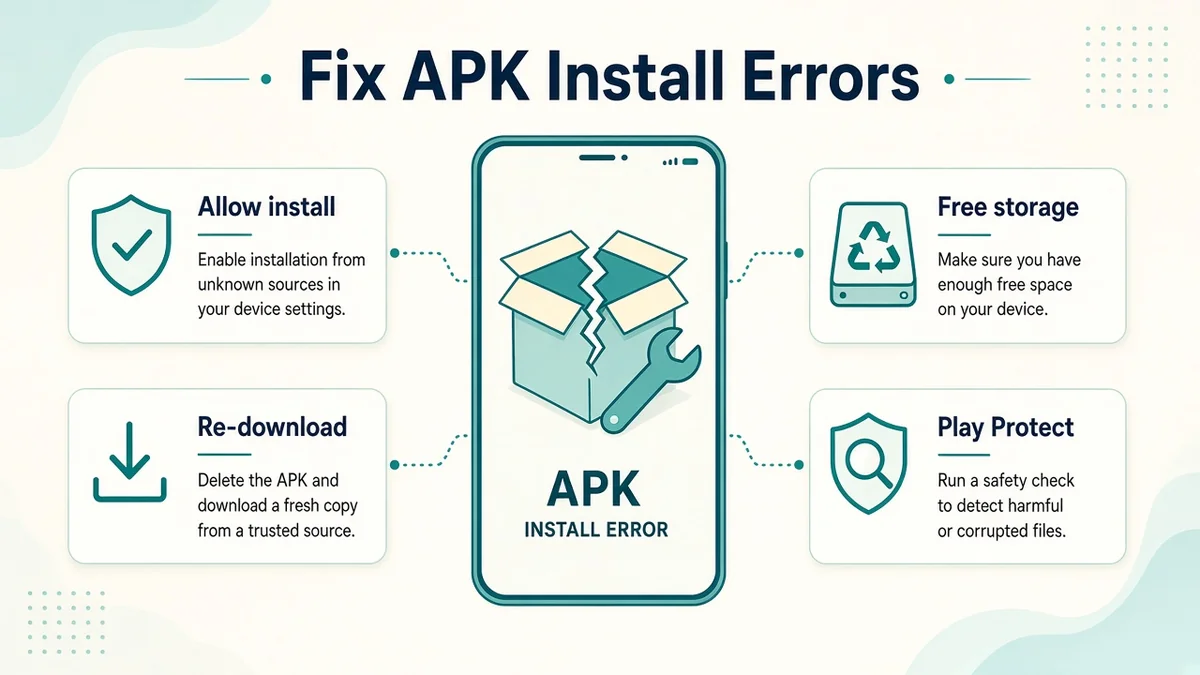
Quick checks before you start
Run through these first. They fix a large share of cases without deep settings changes.
- Confirm the file name ends with
.apk, not a random download stub. - Wait until the browser shows the download as complete.
- Free at least a few hundred MB of storage.
- Use Wi-Fi if mobile data keeps dropping mid-download.
- Uninstall any older PK365 build before installing a new one.
- Restart the phone once, then open the APK from Downloads.
If you still need a clean file, return to the trusted PK365 APK download button and save it again.
What common error messages mean
| Message you see | Likely cause | Start with |
|---|---|---|
| Install blocked / not allowed to install unknown apps | The browser or Files app lacks install permission | Fix 1 |
| There was a problem parsing the package | Corrupt file, wrong format, or incompatible package | Fix 2 and Fix 6 |
| App not installed | Storage, signature conflict, or blocked source | Fix 3, then Fix 1 |
| Blocked by Play Protect | Sideloaded APK flagged for review | Fix 4 |
| Can’t install app (Samsung) | Auto Blocker restricting sideloads | Fix 5 |
Fix 1: Allow install permission for the right app
On modern Android, there is no single global “Unknown sources” switch. You allow one source app at a time — usually Chrome, another browser, or Files.
Open Settings
Go to Settings → Apps (on some phones: Apps → Special app access).
Find Install unknown apps
Open Install unknown apps, then choose the app that downloaded or opened the APK.
Allow from this source
Turn on Allow from this source for that app only.
Retry the install
Return to Downloads, tap the PK365 APK, and install again.
If you downloaded in Chrome but opened the file with Files, grant permission to the app that actually starts the installer. After PK365 installs, you can turn the permission off again for safer daily use.
Fix 2: Corrupt or incomplete APK
A parse error often means Android cannot read the package. Incomplete downloads are a common reason on unstable connections.
- Delete every old PK365 APK in Downloads.
- Clear the browser download list if a file shows as paused.
- Download once more without switching apps mid-transfer.
- Do not rename the file extension by hand.
- Avoid mirror sites that bundle extra “installer” apps.
When the new file finishes, open it directly. If the size looks unusually small compared with previous successful downloads on your phone, treat it as incomplete and try again.
Fix 3: Low storage or old version conflict
“App not installed” can appear when the phone is nearly full, or when an older PK365 package conflicts with the new file.
- Clear cache, unused apps, or large videos until you have comfortable free space.
- Uninstall the existing PK365 app if one is already present.
- Restart the phone after uninstalling.
- Install the fresh APK again.
Uninstalling removes the local app build. Account access after reinstall still depends on your registered login details — keep your number and password ready from the login section.
Fix 4: Play Protect warning
Google Play Protect scans many sideloaded apps. A warning does not automatically mean the file is safe or unsafe. It means the scanner does not fully recognize the package.
- Only continue if you downloaded from a source you trust.
- If the prompt offers More details → Install anyway, use that path when you are confident.
- Avoid cracked, “modded,” or renamed packages from random Telegram forwards.
- If you temporarily turn scanning off, turn Play Protect back on after install.
Leaving security tools disabled long term increases risk. Treat Play Protect as a checkpoint, not an obstacle to ignore by default.
Fix 5: Samsung Auto Blocker
On many Galaxy phones, Auto Blocker can stop installs from outside the Play Store or Galaxy Store — even when Install unknown apps looks enabled.
- Open Settings → Security and privacy.
- Open Auto Blocker.
- Turn it off temporarily and authenticate if asked.
- Install the PK365 APK.
- Turn Auto Blocker back on.
Menu labels can vary slightly by One UI version, but the Auto Blocker toggle is the usual place to look.
Fix 6: Compatibility and package format
If permission and storage are fine but install still fails, check the package itself.
- Android version: Very old phones may reject newer packages. Very new Android builds may reject outdated APKs. Update your system when possible, or try a current PK365 build.
- Wrong file type: Some sites ship
.xapkor split packages. A normal Android installer expects a standard.apk. - Work profile / school phone: Managed devices can block sideloading entirely. You may need a personal phone.
- Antivirus overlays: Extra security apps can interrupt installers. Pause them briefly, install, then re-enable.
After it finally installs
- Open PK365 from the app drawer.
- Register or log in.
- Review app permissions carefully.
- Use the wallet guides for deposit and withdrawal only after the app runs stably.
If the app installs but will not open, restart once, check internet, and reinstall from a new download. For account or payment issues after a successful install, use the homepage support section or the contact form.
Also review the short common problems table on the homepage for login, OTP, and wallet issues that are separate from APK install failures.
FAQs
Why is my PK365 APK not installing?
Common causes include missing Install unknown apps permission, a corrupt download, low storage, an old conflicting install, Play Protect prompts, or Samsung Auto Blocker.
What does a parse error mean for PK365?
A parse error usually means Android cannot read the package. The file may be incomplete, renamed incorrectly, or incompatible with your Android version.
How do I allow unknown apps on Android 12, 13, or 14?
Open Settings, go to Apps or Special app access, choose Install unknown apps, select the browser or Files app you used, and turn on Allow from this source.
Should I turn off Play Protect to install PK365?
Only if you fully trust the download source. Prefer Install anyway when offered. If you disable scanning temporarily, turn Play Protect back on after install.
What if Samsung Auto Blocker stops the install?
On many Galaxy phones, temporarily turn off Auto Blocker, install the APK, then turn Auto Blocker back on.
The APK installs but PK365 will not open. What next?
Restart the phone, check internet, clear the app cache if available, or reinstall from a fresh download. Contact support if it still fails.
Need the full PK365 overview again? Return to the homepage for download, games, bonuses, and wallet guides.